How to stream an IP camera to YouTube
Streaming an IP camera to YouTube is useful when video needs to reach a large audience, whether you are showing an event, construction site, tourist destination, weather, production process or another live activity.
IP cameras normally send video over RTSP, while YouTube accepts live streams over RTMP or RTMPS. The rtsp.me restreaming service receives the camera feed and forwards it to YouTube. You do not need your own media server or a computer running continuously.
Connect an IP cameraWhat you need
- IP cameraA camera already added to rtsp.me and sending video reliably
- YouTube channelLive streaming enabled on the channel
- Stream detailsThe stream URL and secret key from YouTube Studio
- Upload speedA stable on-site internet connection with headroom above the camera bitrate
Step 1. Create a YouTube live stream
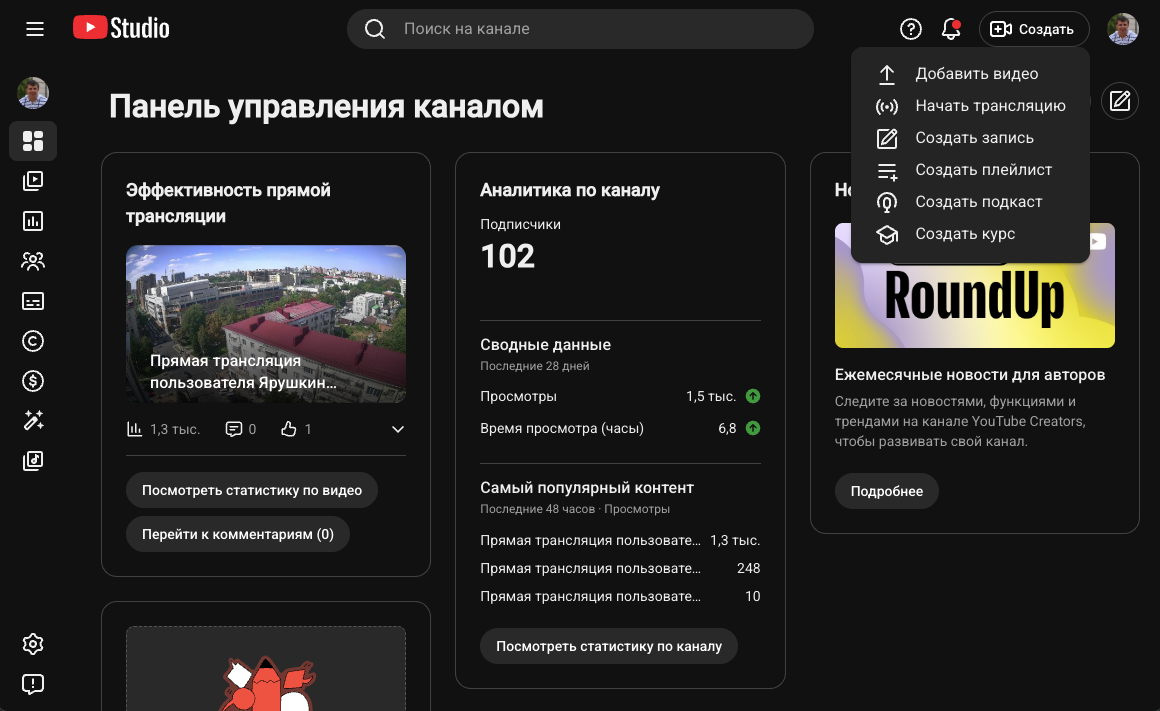
Sign in to your YouTube account and open YouTube Studio. Click the Create button with the camera and plus icon in the upper-right corner, then select Go live.
Step 2. Copy the stream URL and key
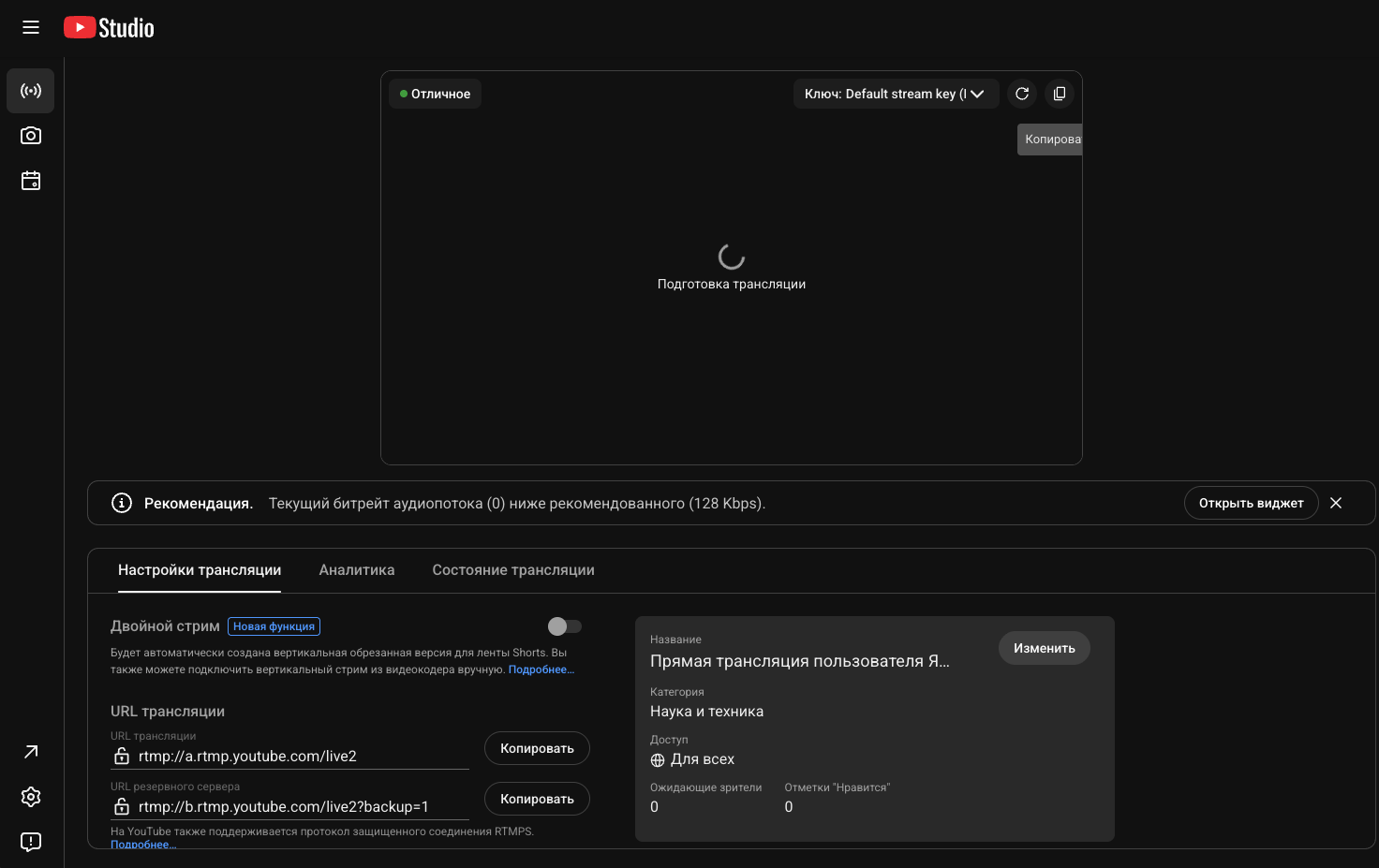
Create a new live event or open one you prepared earlier. In Stream settings, find and copy:
- Stream URL — the YouTube server address, usually beginning with
rtmp://orrtmps://; - Stream key — a unique secret key that associates the incoming feed with your live event.
You will need both values in your rtsp.me account during the next step.
Step 3. Configure restreaming in rtsp.me
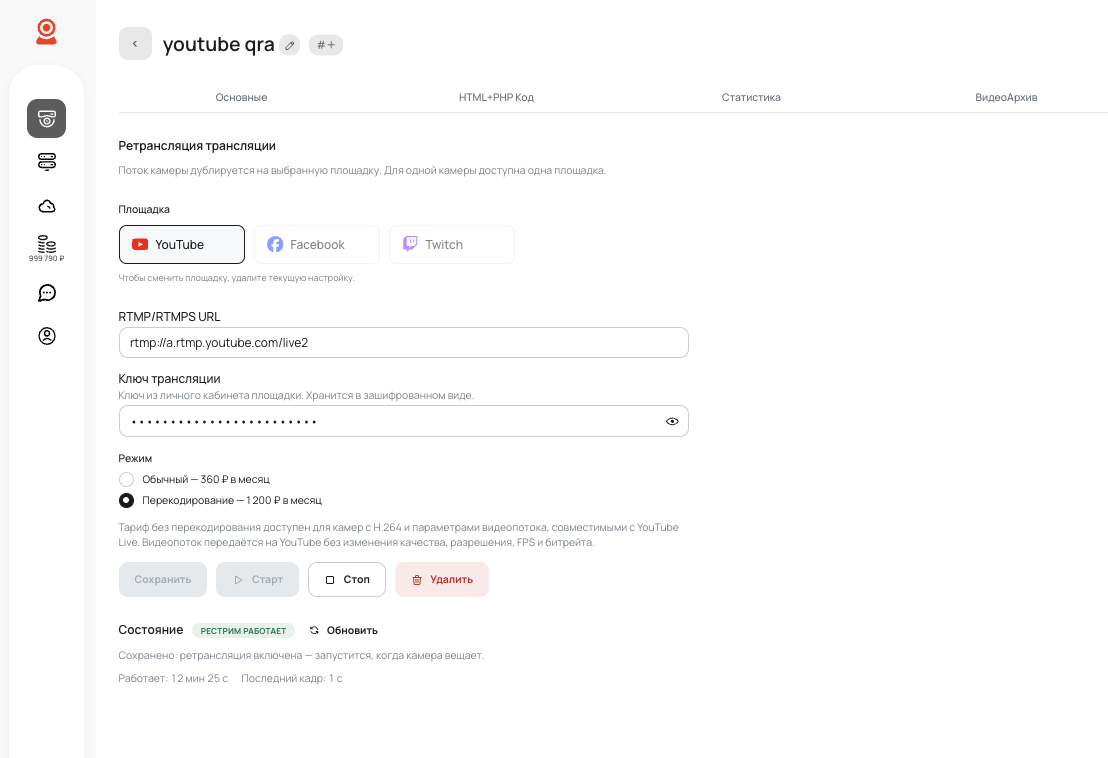
Go to your rtsp.me account and open the required IP camera stream. Select the Restreaming tab at the top of the page.
- Under Platform, select YouTube.
- Paste the copied address into the RTMP/RTMPS URL field.
- Paste the secret key into the Stream key field.
- Choose the appropriate video delivery mode.
- Click Save.
Step 4. Choose the stream delivery mode
Standard mode
In standard mode, rtsp.me forwards the camera feed to YouTube without changing its quality, resolution, frame rate or bitrate. Choose this option if the feed already meets YouTube Live requirements:
- H.264 video codec, not H.265/H.265+;
- progressive scan and a standard resolution, such as 1280 × 720 or 1920 × 1080;
- a frame rate no higher than 60 fps;
- a keyframe interval no longer than 2 seconds;
- a stable bitrate within YouTube's recommendations for the selected resolution and frame rate;
- for feeds with audio, the AAC codec with a 44.1 or 48 kHz sample rate.
For 720p at 30 fps, YouTube usually recommends an H.264 bitrate of around 4 Mbps; for 1080p at 30 fps, the recommendation is around 10 Mbps. Current values depend on resolution and frame rate, so check the latest YouTube Live recommendations before starting.
Transcoding
Choose Transcoding if the camera sends H.265, uses unsuitable settings, or YouTube rejects the feed and shows quality warnings. rtsp.me prepares a compatible stream by converting the codec and, where necessary, adjusting the resolution, frame rate, bitrate and keyframe interval.
Step 5. Start streaming
After saving, click Start. When the camera is sending video, rtsp.me will begin forwarding the feed to YouTube. Return to YouTube Studio, wait for the picture to appear in the preview and check the connection status.
The restreaming page in rtsp.me shows the current status, running time and age of the latest frame. You can also stop and restart the feed there. If you change the URL, key or mode, save the new settings before restarting.
If YouTube is not receiving video
- check that the main camera stream works in your rtsp.me account;
- copy the URL and key again from the correct live event in YouTube Studio;
- make sure the key was not reset or replaced after setup;
- check the restreaming status and the time of the latest frame;
- if YouTube reports an incompatible codec or settings, switch to transcoding mode;
- after changing the settings, save them and restart the feed.
YouTube restreaming cost
The price is quoted for one camera and one connected platform:
- Standard mode10 Euro per month
- Transcoding20 Euro per month
Standard mode is suitable for a feed that already meets YouTube's requirements. Choose transcoding when rtsp.me needs to prepare the video before sending it to the platform.
Frequently asked questions
Stream your IP camera to YouTube
Connect a camera to rtsp.me, configure restreaming and manage the live feed from your account.
Set up restreaming