How to stream a Hikvision or HiWatch camera on a website
Hikvision is one of the most widely used video surveillance manufacturers. Hikvision cameras and HiWatch devices built on the same platform are common, reliable, and usually RTSP-compatible, which makes them a strong choice for live website streaming.
To show video on your website, prepare the camera, provide RTSP access, and add the stream URL to rtsp.me. The service converts the stream into browser-compatible playback and provides ready HTML player code.
Validate RTSP URLWhat you need
- CameraHikvision or HiWatch with RTSP support
- Settings accessLocal IP and administrator account
- Router accessTo reserve IP and configure port mapping
- Public IPStatic IP or dynamic IP with DDNS
Step 1. Open the camera web interface
Connect your computer to the same local network as the camera. Enter the device local IP in a browser, for example http://192.168.1.100, then sign in as administrator.
If the address is unknown, check your router client list or use the manufacturer's device discovery utility.
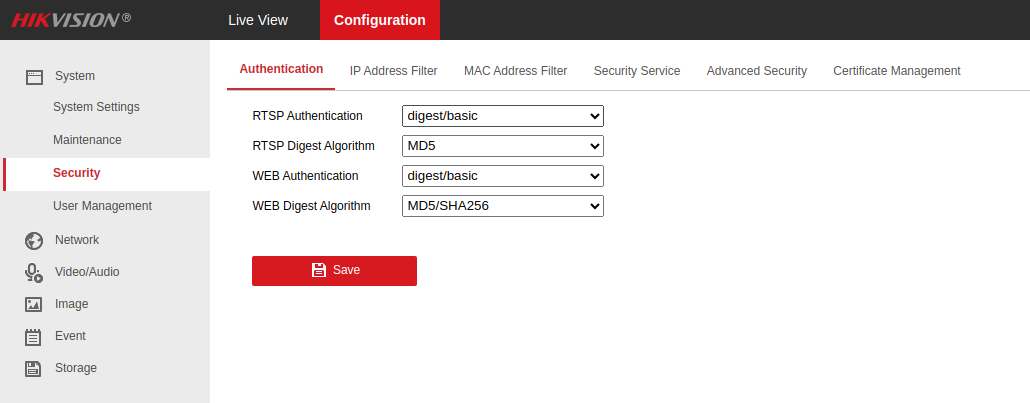
Step 2. Configure RTSP authentication
- Open Configuration.
- Go to System -> Security.
- Open Authentication.
- Set RTSP Authentication to digest/basic.
- Set RTSP Digest Algorithm to MD5.
- Click Save.
Step 3. Configure the main stream
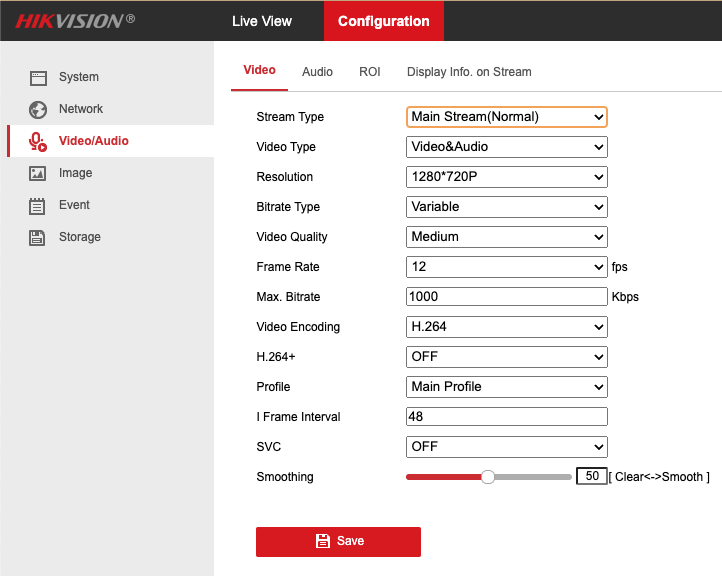
- Go to Video/Audio -> Video.
- Set Stream Type to Main Stream (Normal).
- Choose the required Resolution.
- Set Frame Rate to 25 fps.
- Set Video Encoding to H.264.
- Click Save.
H.264 provides broad compatibility. H.265 and H.265+ may require additional transcoding.
Step 4. Create a dedicated user
Do not use the camera admin account in your RTSP URL. In System -> User Management, create a separate user only for streaming.
- leave only view permissions;
- do not grant configuration or user-management rights;
- set a strong unique password;
- do not publish login, password, or full RTSP URL.
Step 5. Reserve the local IP
Find the camera address in network settings or on the router, for example 192.168.1.100. Verify the RTSP port: Hikvision and HiWatch usually use TCP 554.
Reserve the address via DHCP reservation on the router or configure a correct static address on the camera. Otherwise, IP changes after reboot may break forwarding rules.
Step 6. Configure port mapping
For direct access, your router must have a public IP. Forward an external TCP port, for example 10554, to the camera RTSP port:
- ProtocolTCP
- External port10554
- Internal IP192.168.1.100
- Internal port554
Section names vary by router: Port Mapping, Port Forwarding, Virtual Server, or NAT. Use the full guide "How to configure port mapping".
Connection through software agent
If the site has no public IP address or opening an RTSP port on the router is not possible, install the rtsp.me software agent on a computer or mini PC in the same local network as the camera.
The agent receives the local Hikvision or HiWatch RTSP stream and sends it to rtsp.me over an outbound connection. In this case, port mapping, inbound internet access, and an exposed RTSP port are not required.
Windows, Linux, and ARM are supported. Setup and configuration are described in "IP camera streaming agent without static IP".
Step 7. Build the RTSP URL
For channel 1 main stream on Hikvision and HiWatch, the common pattern is:
Example for user viewer, public address 203.0.113.10, and external port 10554:
- viewerDedicated username
- StrongPasswordUser password
- 203.0.113.10Router public IP
- 10554External mapped port
- 101Main stream of channel 1
- 102Sub stream of channel 1
Replace the sample values with your own. Password characters such as @, :, /, #, and % must be URL-encoded correctly. Do not use the sample password in production.
Step 8. Add the camera on rtsp.me
- Open rtsp.me.
- Paste the prepared RTSP URL and click Test.
- After successful validation, add the camera in your account.
- Copy the player HTML code and place it on your website.
Read more: "How to embed a stream on your website".
Frequently asked questions
Connect Hikvision or HiWatch to rtsp.me
Validate your camera RTSP URL and get ready live player code for your website.
Validate RTSP URL